

Creating Password File Manually
Wi-Fi Network Setup 
Creating a Password File Manually
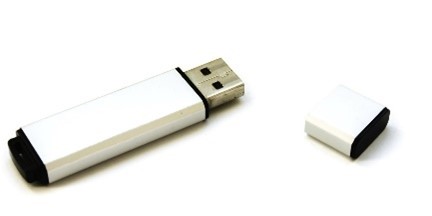
- Insert a USB flash drive into your computer.
- Right click on an empty space on the computer desktop.
- Choose New > Text Document.
- Skip naming the file for now.
- Open the file and type WirelessKey= followed by your network password. There should be no spaces, unless your network password includes a space.
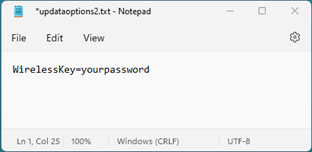
- File > Save As > Choose the USB drive
- Name the file updataoptions2 and keep it set to a .txt
- Save.

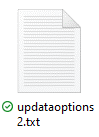
- Exit the file and right click the icon and choose Rename.
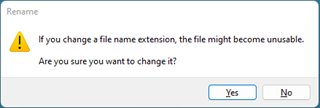
- Keep the file name the same, but replace the “.txt” with “.cfg” to create a configuration file.

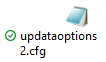
- Safely eject the USB from your computer.
Double Check!
File saved as updataoptions2.cfg with contents: WirelessKey=YourPassword.
Was this article helpful to you?
Can’t find the answer? Contact Support